Internal technical support
Need help with CivicActions accounts, tools, or hardware? The fastest way to get help is through Slack + Assist.
To Request Support
- Start a new request (recommended): post in
#it-support. A bot will reply and help you turn your message into the right kind of request. - Turn an existing Slack message into a request: use the message … (More actions) menu → Assist (works from any channel).
- Something private/sensitive: open the Assist app (under Apps in Slack) → Raise a request.
NOTE: The
:ticket:emoji method is being retired. Please use one of the options below instead.
Option 1: Ask in #it-support (recommended)
Use this for general questions, requests, or if you are not sure what you need.
Using a public channel lets others help if they have the answer, and also helps others who might have the same question later.
- In Slack, open #it-support.
- Type your message (you don't need any special format).
- The IT bot will reply right away:
- It may suggest documentation if your message looks like a question.
- If you're asking for help (e.g. laptop/software/access), it will suggest the right request type with a button to confirm.
- If the bot can't figure it out, it may ask for more details - or you can click the "Raise request" button if the bot isn't helping.
- If a request/ticket is created, someone from the support team will follow up in the thread on that request.
IT Support video walkthrough
Option 2: Create a request from an existing Slack message (any channel)
Use this when the context is already in Slack - maybe you're in a project channel, a department channel, or a thread where the discussion already started.
- Find the message that best describes the issue.
- Hover over the message and click … (More actions).
- Under Connect to Apps, select Assist.
- If you don't see it, use the search box in that menu to find Assist.
- Follow the prompts to create the request.
Existing message video walkthrough
Option 3: Private request via the Assist app
Use this when your request should not be in a public channel (e.g. something personal or sensitive).
- In Slack's left sidebar, open Assist under the Apps section.
- Click Raise a request - this is under the Home tab.
- Choose the request type and fill in the details.
- To find your tickets later, return to the Assist app and use the Messages tab.
Private message video walkthrough
Other scenarios
Can't access Slack
You can also see your support requests and create new ones through the portal at team.support.civicactions.com - you can log in with your CivicActions Google Account.
Emergency: locked out
If you are locked out of your laptop or Google Account - or need emergency help, call or text:
7 60-60-60 900
Help us close the loop: mark requests as resolved
When your issue is resolved, please let us know - this helps the support team confirm nothing is stuck or silently failing.
You can:
- Click Change status in the request thread (see below) and mark it Resolved.
- Reply in the thread with a quick confirmation (ex: "All set, thanks!".
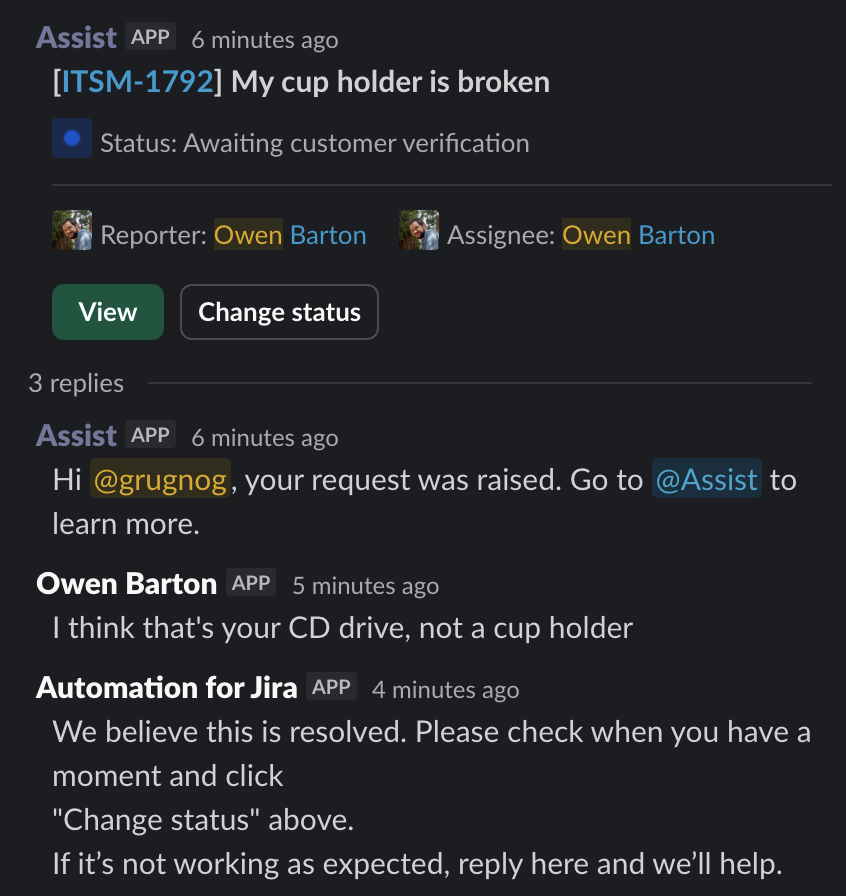
Tips for faster help
Including a little context up front can reduce back-and-forth:
- What you were trying to do
- What happened (and any error message)
- Whether you are blocked or it's non-urgent
- Device, OS, browser or other software details if relevant
- Screenshots are helpful — avoid sharing passwords, secrets, or sensitive client data
What internal IT support covers
This team generally supports:
- Internal systems and services (Slack, Zoom, Chrome, Google Workspace, GitHub/GitLab, etc.)
- Internal hardware and access (laptops, security keys, software installs)
For project-specific tools or issues, please reach out to your project's technical lead or the client's IT support team as appropriate. If you aren't sure, you can always ask in #it-support and we can help point you in the right direction.